
Click the button below
Press the "Start using!" button on this official page to go to the safe Jeetbuzz download for Windows.
Use the Jeetbuzz desktop application on your computer for sports betting, live casino tables, roulette, slots, and other casino games in one place. The client is free to download for Windows and macOS, offers the same betting options as the official website, and gives you a more stable, full-screen experience on PC.
Free 7 Lukcy Spins (Slots & Fishing), 25% Cashback (Live Casino & Table Game), 50% Sports Refund
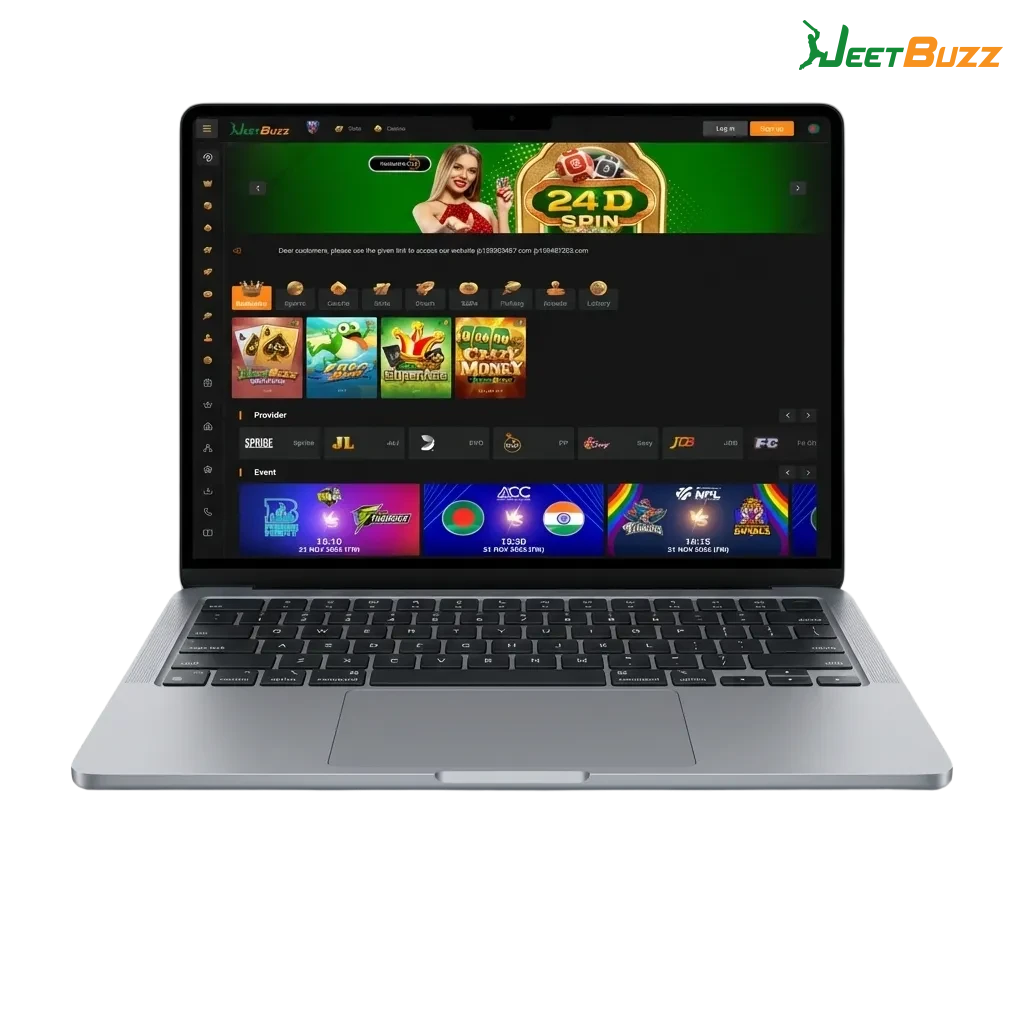
The Jeetbuzz app for PC gives you a stable, always-ready client for betting and casino play on your desktop. Main advantages include quicker access from your computer desktop, smoother live games on a stable system, and a cleaner full-screen layout compared to the website.
| Characteristic | Information |
|---|---|
| PC Client Size | Around 50–80 MB (depends on version) |
| Available Languages | English, Urdu, Hindi, Bengali, Bahasa Indonesia |
| Category | Sports betting, Online casino, Live casino, Slots, Table games, Instant games |
| Compatible with Windows | Windows 7, Windows 8, Windows 8.1, Windows 10, Windows 11 (64-bit recommended) |
| Compatible with macOS | macOS Mojave (10.14) or later on Intel or Apple Silicon (through Rosetta) |
Installing the Jeetbuzz download for PC gives you a dedicated betting and casino client on your computer, instead of relying only on a browser tab. Check the main pros and the few cons before deciding if the desktop option suits your playing style.
| Pros of the Jeetbuzz app for PC | Cons of the Jeetbuzz app for PC |
|---|---|
| Faster access from a desktop icon than opening the website each time | Storage space needed on your computer |
| More stable performance during live betting and live casino streams | You must install updates from time to time |
| Full-screen layout for slots, roulette, and table games | Only usable on the computer where it is installed |
| Fewer random logouts compared to some browsers | |
| Lower chance of lags when many browser tabs are open | |
| Simple, focused interface without extra browser toolbars | |
| Login process kept inside one trusted client for your account |
The Jeetbuzz app for Windows is light on system resources and compatible with most modern PCs used in Pakistan. A basic dual-core processor, 4 GB RAM, and a stable internet connection are usually enough for smooth betting and casino play.
Press the "Start using!" button on this official page to go to the safe Jeetbuzz download for Windows.
On the landing page, select the Jeetbuzz for PC installer made for Windows and confirm the download.
When your browser asks, save the setup file to a folder on your computer that you can find easily, such as Downloads.
Open the downloaded file, then confirm any security prompt to start the installation process on your system.
Read the information on screen, accept the terms, choose an install location, and click the next button until the process finishes.
After installation, double-click the new desktop icon to open the Jeetbuzz app for Windows, login or register, and start betting.
The Mac version of the Jeetbuzz app for PC works on most recent MacBook and iMac models that run a supported macOS version. Performance is stable for live casino and sports, as long as your internet connection is steady.
Use the "Start using!" button on this page to go to the official site area that offers the Mac client.
On the download screen, pick the installer marked for macOS and confirm that your computer saves the file.
Go to the Downloads folder in Finder, double-click the setup file, and confirm you want to open an app downloaded from the internet.
In the install window, drag the Jeetbuzz icon into the Applications folder, then wait for the copy process to finish.
Open Launchpad or the Applications folder, start the client, allow any first-run permissions, login to your account or complete registration, and begin playing.
Keeping the Jeetbuzz app for PC updated helps your betting stay stable, protects your account data, and gives access to the latest games and features. The update process is simple and takes only a few clicks on your computer.
Double-click the Jeetbuzz PC icon, login to your account if needed, and wait for the main lobby to load.
If a new version is available, an on-screen message usually appears, asking you to confirm the update process.
Click the update button, allow the client to download new files, and keep your internet connection active until it finishes.
Close the client when asked, open it again from your desktop or Applications, and confirm that the updated version is running.
You can complete registration directly inside the Jeetbuzz for PC client and start betting on sports and casino games from the same place. A verified account keeps your information in one profile, so the login process stays simple across computer and website.
Start the desktop client from your Windows or Mac system and wait for the home screen to load.
Press the sign-up button, then choose the registration method you prefer, such as full form, quick mobile number, or social login if shown.
Enter your mobile number, email, password, and any required personal information, then confirm that all details are correct.
Complete any SMS or email verification step, login to your new account, make a deposit if you wish, and place your first sports or casino bet from the PC app.
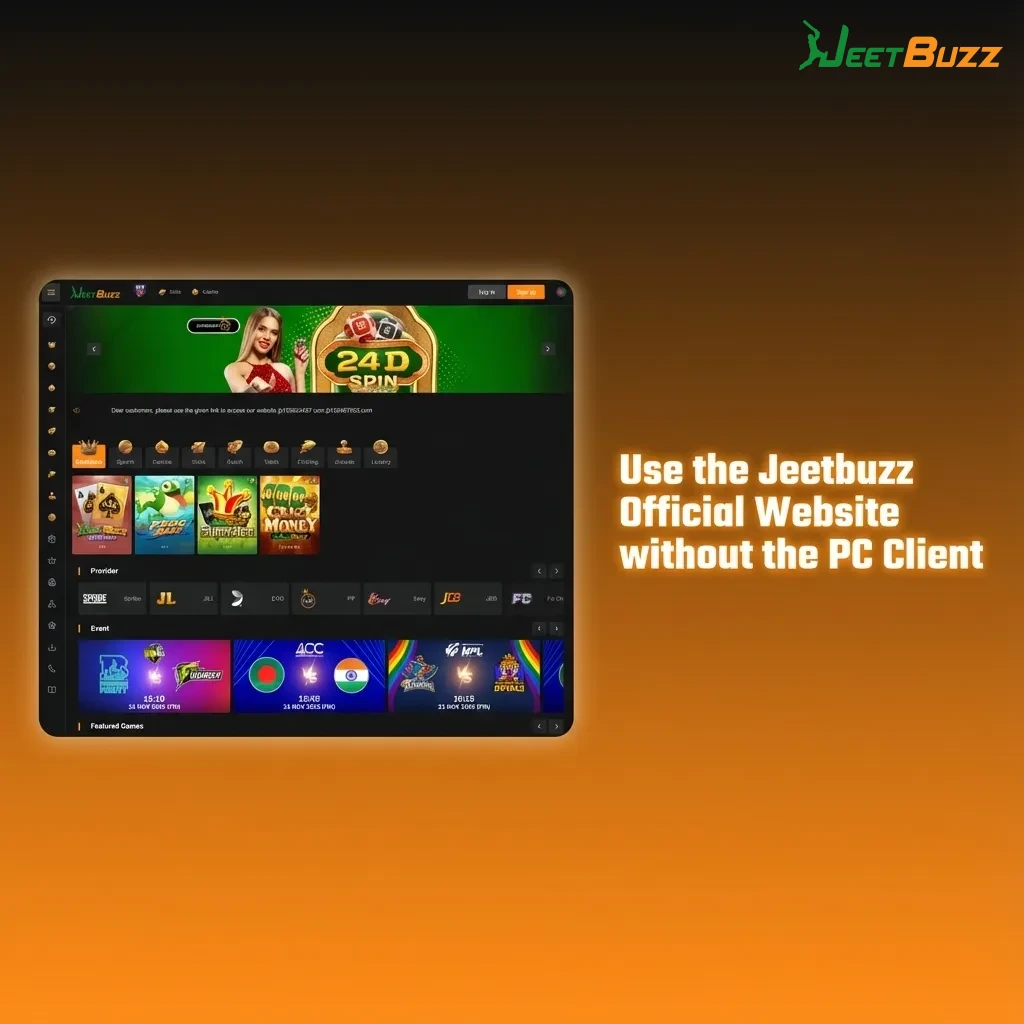
You do not have to install the Jeetbuzz download for PC to enjoy sports betting and casino play. The official website in your browser offers the same account system, betting markets, live casino tables, slots, and payment options. This option is helpful if you share a computer, use a work device, or prefer not to add extra software. You can test games and the registration process on the website first, then decide later if the desktop client is a better fit for your routine.
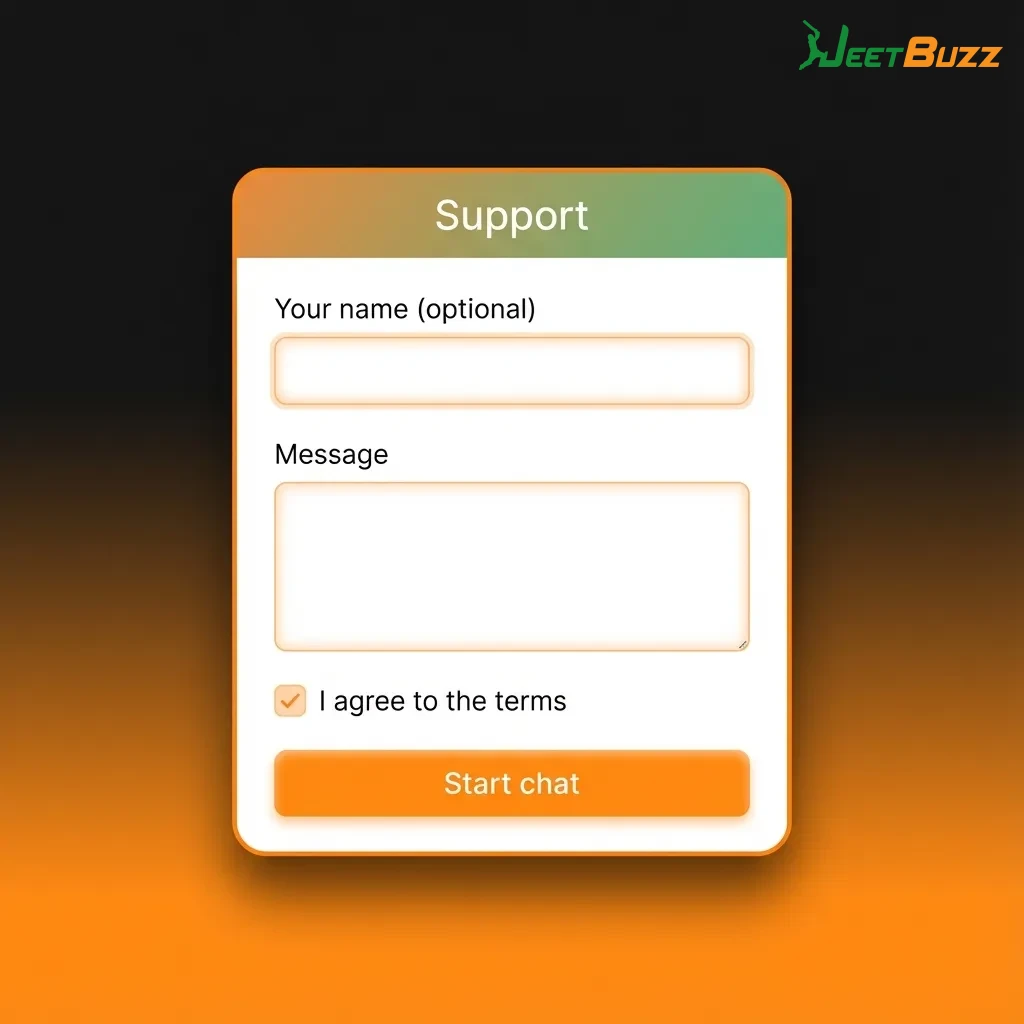
Desktop users get access to the same customer support team that helps website and mobile players. You can contact support from your computer using several convenient methods.
Yes, the installer for Windows and macOS is free; you only deposit money if you choose to place real bets.
Yes, you can login on the PC client, mobile app, and official website using the same username and password.
Downloading from the official site keeps the installer trusted, and you can scan the file on your computer using your own antivirus for extra comfort.
A stable broadband or 4G speed is recommended, since live streams and in-play betting need steady data to avoid lags.
Yes, you can usually select your preferred language, such as English or Urdu, from the settings or profile section inside the app.
Updated: